
How to Locate the Password Vault
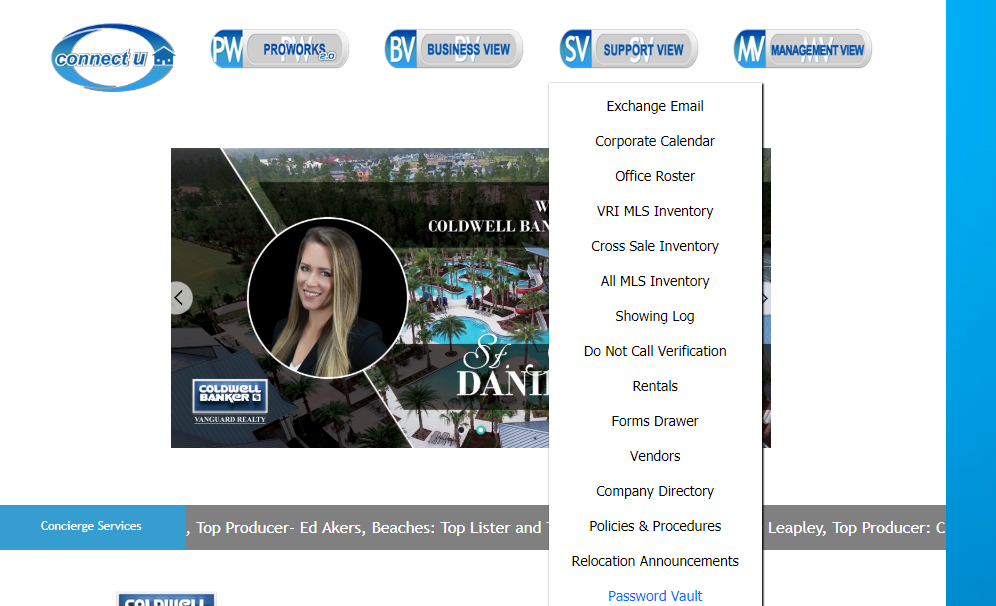
Step 1: Login to CBVConnectU.com: https://www.cbvconnectu.com/cu/main.asp
Step 2: Hover your mouse to the Support View tab at the top and click on the words 'Password Vault.'
How to Update Your Passwords in the Vault
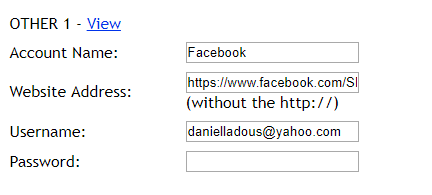
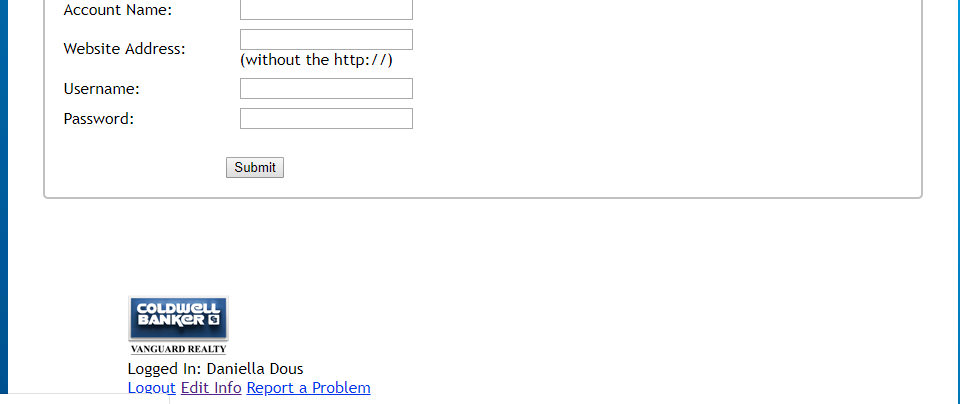
Step 1: Make sure to fill out the fields below.
- Account Name is the title of the social media website (Facebook, Instagram, Zillow etc.)
- The Website Address is the URL of the page.
- The Username and Password are the logins to the account.
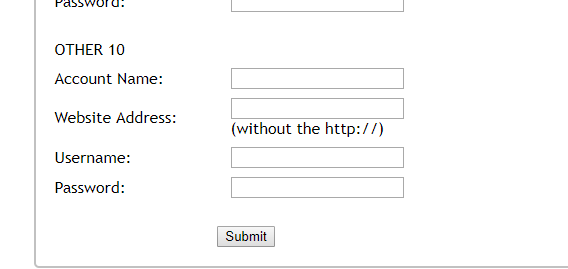
Step 2: You MUST scroll down and hit submit at the bottom of the page in order for your information to be saved.
How to Update Your Bio in the Password Vault
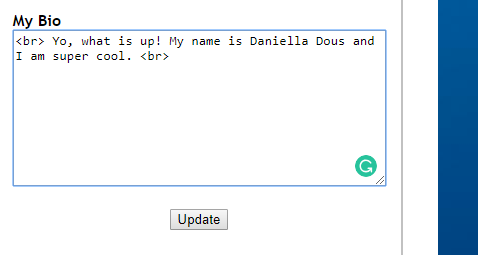
Step 1: To update your bio in the password vault, all you need to do is either type or paste it into the 'My Bio' box. Note: If you are a Global Luxury agent, you will have TWO bio boxes (one for your standard bio, and one for your GL bio).
Step 2: To ensure there is space between paragraphs, you need to add <br> at the beginning and end of each paragraph.
Step 3: Make sure to hit update to save your bio.
How to Add Social Media Icons to Your CBV Homesearch Page
Step 1: To have your CBV search website link to your social media pages, you will need to scroll all the way down and click edit info.
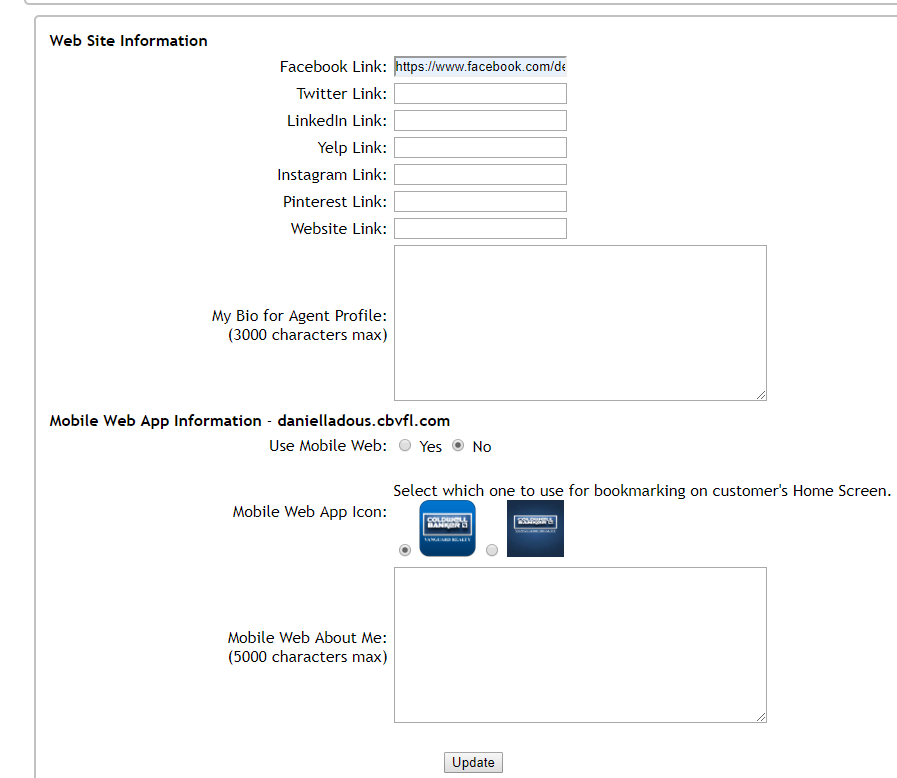
Step 2: Then, post your URL link next to the social media website name. Click on the update button at the bottom to save the changes.
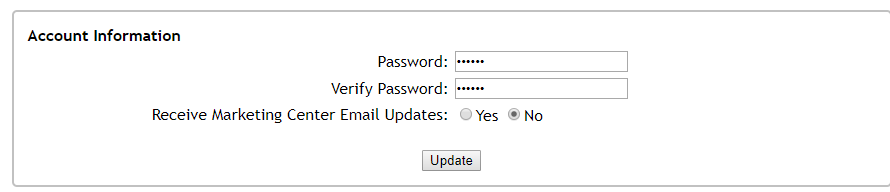
Note: You can also change your account information and email updates in this area. Just make sure to click on update for the changes to save in the system.
YouTube Tutorial
Comments
0 comments
Please sign in to leave a comment.